
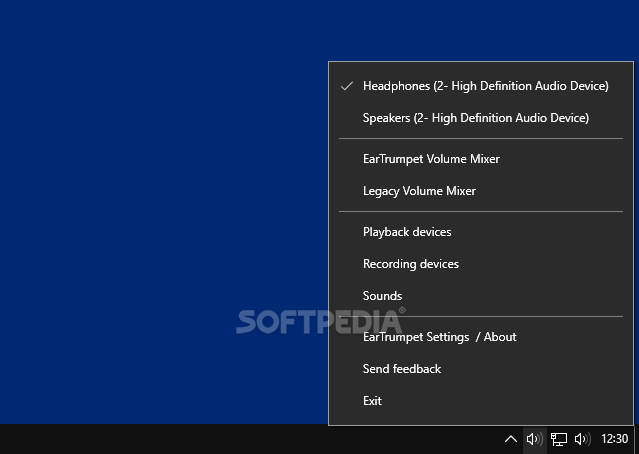
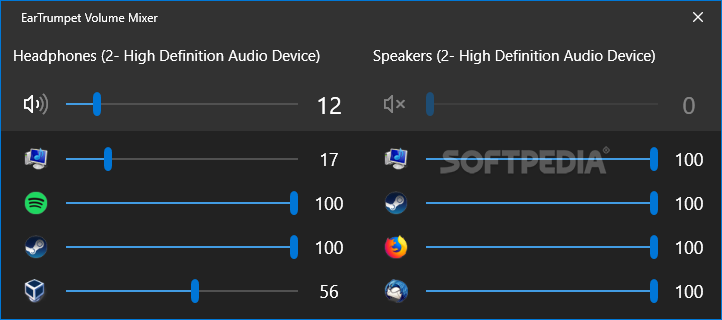
If you want to download EarTrumpet, here is what you should know before you do. Windows still ships with the same clunky volume flyout it had a decade ago, and it only lets you nudge one master slider at a time. EarTrumpet swaps that flyout for a taskbar icon that lists every app currently making noise, each with its own volume bar you can drag on its own.
The tool started as a side project by former Microsoft engineer Rafael Rivera and is now maintained by the File-New-Project community on GitHub. Anyone juggling a Discord call, a browser tab, and a game at the same time tends to install it after muting the wrong window one too many times.
Key Features of EarTrumpet
Once you download EarTrumpet, here is what changes on your desktop:
- Per-app volume sliders sit directly in the tray flyout, so there is no need to dig through Settings just to turn down one browser tab.
- Send an individual app audio stream to a different output device, keeping Spotify on desktop speakers while a headset handles Discord.
- Remembers those per-app device assignments automatically the next time a headset or HDMI display reconnects.
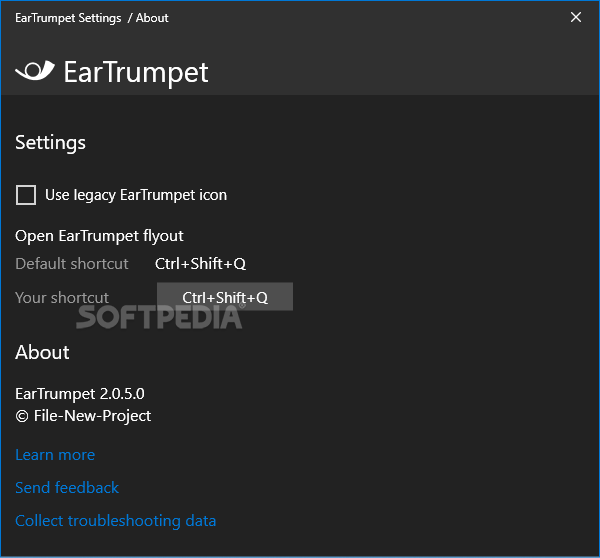
- Scroll-wheel volume control works globally or only while hovering the EarTrumpet icon, and can be switched off entirely in Settings.
- Version 2.3.0.0 added a community settings panel, including an optional logarithmic volume scale for finer control at low levels.
- Legacy shortcuts to App Volume and Device Preferences and the classic Volume Mixer are folded into the right-click context menu.
- Renders in software-only mode by default, which keeps it off power-hungry GPUs on laptops running on battery.
- Built and translated by the open-source community, with German, French, Norwegian, and Japanese language packs available.
Screenshot / Demo
How to Install EarTrumpet
Getting EarTrumpet onto a Windows 10 or 11 machine takes less time than it does to read this section.
- Open the Microsoft Store or grab the installer from the EarTrumpet GitHub releases page.
- Run EarTrumpet Installer.exe and approve the User Account Control prompt.
- Wait a few seconds while it replaces the default sound flyout, no restart needed.
- Click the speaker icon in the system tray to see the new per-app mixer.
- Right-click the icon to reach Settings and adjust scroll-wheel or device options.
Enjoy using EarTrumpet!
Frequently Asked Questions about EarTrumpet 2.3.0.0
Is EarTrumpet 2.3.0.0 free?
EarTrumpet 2.3.0.0 is completely free to download and use — no registration or payment required.
What are the system requirements for EarTrumpet 2.3.0.0?
Minimum requirements: Windows 7/10/11. A modern PC with at least 2GB RAM is recommended.
What is the latest version of EarTrumpet 2.3.0.0?
The latest version is 2.3.0.0, updated on 17/08/2026.
Is EarTrumpet 2.3.0.0 safe to download?
Yes. All software listed on download.viet33.com is sourced directly from the official developer and verified before publishing. No bundled adware or malware.
Does EarTrumpet 2.3.0.0 work on Windows 11?
Yes, EarTrumpet 2.3.0.0 is compatible with Windows 7/10/11, including Windows 11.
 Download NetLimiter 5.3.26.0
7 Downloads
Download NetLimiter 5.3.26.0
7 Downloads
 Download DesktopCalendar 2.3.108.5601
127 Downloads
Download DesktopCalendar 2.3.108.5601
127 Downloads
 Download Hard Disk Sentinel 6.40
85 Downloads
Download Hard Disk Sentinel 6.40
85 Downloads
 Download Windows 10
74 Downloads
Download Windows 10
74 Downloads
 Download HWMonitor 1.66
118 Downloads
Download HWMonitor 1.66
118 Downloads