
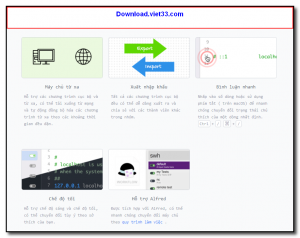
SwitchHosts is a free, open-source application for managing and quickly switching between multiple hosts file configurations. It provides a clean graphical interface for editing your system’s hosts file, creating multiple profiles, and toggling them on or off with a single click — without needing to manually edit system files.
Developers frequently use hosts file entries to redirect domain names to local servers during development. SwitchHosts makes this workflow much more convenient by allowing you to maintain separate profiles for different projects and environments (development, staging, production) and switch between them instantly.
SwitchHosts supports both local hosts file profiles and remote hosts configurations fetched from URLs, making it easy to share standard hosts configurations across a team. It is available for Windows, macOS, and Linux.
Key Features
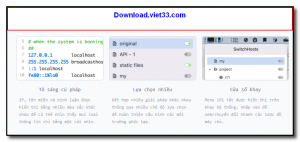
- Create, edit, and manage multiple hosts file profiles
- Toggle profiles on/off with a single click from the system tray
- Remote hosts profile support — fetch entries from a URL
- Syntax highlighting and validation in the built-in editor
- Automatic backup of the original hosts file before changes
- Cross-platform: Windows, macOS, and Linux
- Free and open-source under the Apache 2.0 license
How to Install
- Click the download button to get the SwitchHosts installer for your platform.
- Run the installer and follow the on-screen setup instructions (admin/sudo rights required to modify the hosts file).
- Launch SwitchHosts — it will appear in your system tray.
- Create a new hosts profile, add your domain-to-IP entries, and save.
- Toggle the profile on to activate it, or switch profiles instantly as your work context changes.
 Download Revo Uninstaller Portable 2.7.0
18 Downloads
Download Revo Uninstaller Portable 2.7.0
18 Downloads
 Download FurMark 2.10.2
19 Downloads
Download FurMark 2.10.2
19 Downloads
 Download VMware Workstation Pro 26H1
17 Downloads
Download VMware Workstation Pro 26H1
17 Downloads
 Download CrystalDiskInfo 9.9.2
20 Downloads
Download CrystalDiskInfo 9.9.2
20 Downloads
 Download DirectX 12
15 Downloads
Download DirectX 12
15 Downloads