
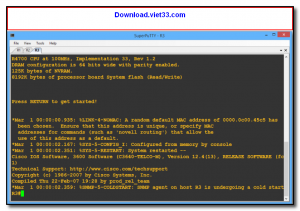
SuperPuTTY is a free, open-source Windows application that extends the popular PuTTY SSH client with a tabbed and tiled multi-session interface. It allows system administrators and developers to manage dozens of SSH, Telnet, Rlogin, and SCP sessions simultaneously within a single organized window, dramatically improving remote server management efficiency.
With SuperPuTTY, you can organize your server connections into a session tree, open multiple terminals side by side in tiled layouts, and send the same command to multiple sessions at once. It remembers all your session configurations so you can reconnect to servers with a single double-click.
SuperPuTTY wraps around existing PuTTY installations and requires PuTTY to be installed separately. It adds the multi-window management layer that PuTTY lacks by itself, making it a favorite tool among Windows sysadmins who work with many servers daily.
Key Features
- Tabbed and tiled multi-session management for SSH, Telnet, and Rlogin
- Session tree for organizing connections by group or environment
- Send commands to multiple sessions simultaneously
- SCP file transfer integration
- Session import from PuTTY’s existing session registry
- Customizable layouts and window arrangement
- Free and open-source, requires PuTTY installation
How to Install
- Ensure PuTTY is installed on your Windows system (download from the official PuTTY website).
- Click the download button to get the SuperPuTTY installer.
- Run the installer and follow the on-screen setup instructions.
- Launch SuperPuTTY and point it to your PuTTY executable in the Tools > Options menu.
- Import your existing PuTTY sessions or create new ones in the session tree, then double-click to connect.
 Download Revo Uninstaller Portable 2.7.0
18 Downloads
Download Revo Uninstaller Portable 2.7.0
18 Downloads
 Download FurMark 2.10.2
19 Downloads
Download FurMark 2.10.2
19 Downloads
 Download VMware Workstation Pro 26H1
17 Downloads
Download VMware Workstation Pro 26H1
17 Downloads
 Download CrystalDiskInfo 9.9.2
20 Downloads
Download CrystalDiskInfo 9.9.2
20 Downloads
 Download DirectX 12
15 Downloads
Download DirectX 12
15 Downloads