
Subtitle Edit is a free, open-source subtitle editor for Windows that makes it easy to create, edit, sync, and convert subtitle files. Supporting over 300 subtitle formats including SRT, ASS, VTT, and many more, it is the most feature-complete free subtitle tool available.
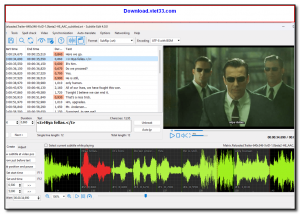
The software includes a built-in waveform and spectrogram display for precise subtitle synchronization, a video preview window, and OCR support for extracting text from image-based subtitles. It can also automatically detect and fix common subtitle errors such as overlapping lines, incorrect frame rates, and missing characters.
Subtitle Edit integrates with multiple speech recognition engines and translation services, enabling users to auto-generate and translate subtitles. Whether you are a content creator, translator, or home theater enthusiast, Subtitle Edit covers all your subtitle needs.
Key Features
- Supports over 300 subtitle formats including SRT, ASS, VTT, and SSA
- Visual waveform and spectrogram for frame-accurate synchronization
- Built-in video preview for real-time subtitle review
- OCR tool for converting image-based subtitles (e.g., from DVDs) to text
- Auto-translation via Google Translate, DeepL, and other services
- Speech recognition integration for auto-generating subtitles from audio
- Batch subtitle conversion between formats
How to Install
- Click the download button to get the Subtitle Edit installer.
- Run the installer and follow the on-screen setup instructions.
- Launch Subtitle Edit from the Start Menu or desktop shortcut.
- Open a subtitle file via File > Open or drag a video file into the waveform panel to start creating subtitles from scratch.
- Use the video preview and waveform to align subtitles precisely, then save your work via File > Save.
 Download Revo Uninstaller Portable 2.7.0
18 Downloads
Download Revo Uninstaller Portable 2.7.0
18 Downloads
 Download FurMark 2.10.2
19 Downloads
Download FurMark 2.10.2
19 Downloads
 Download VMware Workstation Pro 26H1
17 Downloads
Download VMware Workstation Pro 26H1
17 Downloads
 Download CrystalDiskInfo 9.9.2
20 Downloads
Download CrystalDiskInfo 9.9.2
20 Downloads
 Download DirectX 12
15 Downloads
Download DirectX 12
15 Downloads