
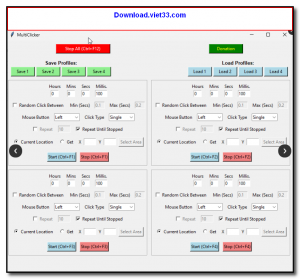
MultiClicker is a free automatic mouse clicker tool for Windows that lets you automate repetitive mouse click tasks with customizable click intervals, positions, and click types. Whether you need to repeatedly click a button, fill out forms, or perform any other mouse-driven task, MultiClicker handles it automatically so you can focus on other work.
The tool supports both single and double clicks, left and right mouse buttons, and allows you to set the exact screen coordinates where clicks should occur. You can configure the click interval in milliseconds, the total number of clicks to perform, and trigger the automation with a user-defined hotkey for quick start and stop control.
MultiClicker is lightweight, portable, and requires no installation. It is widely used for gaming automation, repetitive data entry tasks, software testing, and any scenario where manual clicking would be tedious or time-consuming.
Key Features
- Automate mouse clicks at any screen position with configurable intervals.
- Supports left click, right click, and double click automation.
- Set exact pixel coordinates or use the current cursor position for click targets.
- Configure click count (fixed number or unlimited loop) and click interval in milliseconds.
- Start and stop automation instantly with a customizable keyboard hotkey.
- Lightweight and portable, no installation required.
- Free to use for personal and commercial purposes.
How to Install
- Download the MultiClicker ZIP archive or executable from the link below.
- Extract the archive to any folder, or simply run the EXE directly.
- Launch MultiClicker.exe to open the configuration interface.
- Set your desired click interval, click type, position, and total click count.
- Press the configured hotkey (default: F6) to start automation, and press it again to stop.
 Download Flame Auto Clicker
6363 Downloads
Download Flame Auto Clicker
6363 Downloads
 Download Super Auto Clicker
6785 Downloads
Download Super Auto Clicker
6785 Downloads
 Download Fast Mouse Clicker – Ultra-Fast Auto Clicker for Windows
8872 Downloads
Download Fast Mouse Clicker – Ultra-Fast Auto Clicker for Windows
8872 Downloads
 Download Auto Keyboard Presser – Automatic Key Press Simulator for Windows
9580 Downloads
Download Auto Keyboard Presser – Automatic Key Press Simulator for Windows
9580 Downloads
 Download AutoHotkey – Free Windows Automation and Scripting Tool
7167 Downloads
Download AutoHotkey – Free Windows Automation and Scripting Tool
7167 Downloads