
Glary Undelete is a free and powerful file recovery tool that can restore accidentally deleted files from your hard drive, USB drives, memory cards, and other storage devices. Whether files were deleted from the Recycle Bin, lost due to a crash, or removed by a format, Glary Undelete scans deeply to find and recover them.
Unlike many recovery tools, Glary Undelete uses a clear folder-tree view that mirrors the original directory structure of your drive, making it easy to browse and locate the specific files you need to recover. It also shows a recovery probability rating for each file, so you know what to expect before attempting restoration.
Fast, free, and requiring no installation, Glary Undelete is an essential tool to have ready for those moments when you accidentally delete something important.
Key Features
- Recovers deleted files from HDD, SSD, USB drives, and memory cards
- Folder-tree view mirrors original directory structure for easy navigation
- Recovery probability indicator shows the chance of successful file restoration
- Supports FAT12, FAT16, FAT32, and NTFS file systems
- Filter by file name, extension, size, or deletion date to find files quickly
- Portable version available — run without installation
- Completely free with no file size or recovery limits
How to Install
- Click the download button above to get the Glary Undelete installer.
- Run the setup file and follow the on-screen instructions to install.
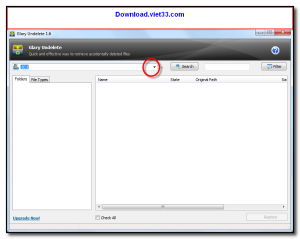
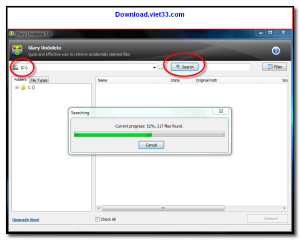
- Launch Glary Undelete and select the drive to scan for deleted files.
- Browse the folder tree or use filters to find the files you want to recover.
- Select the files and click “Restore” — save them to a different drive to avoid overwriting.
 Download DocRepair
5045 Downloads
Download DocRepair
5045 Downloads
 Download eMule – Free P2P File Sharing Client for ED2K and Kad Networks
6742 Downloads
Download eMule – Free P2P File Sharing Client for ED2K and Kad Networks
6742 Downloads
 Download Dreamule 3.2 – eDonkey and Kad Network Download Client
6647 Downloads
Download Dreamule 3.2 – eDonkey and Kad Network Download Client
6647 Downloads
 Download SHAREit – Fast File Sharing Across Devices
6618 Downloads
Download SHAREit – Fast File Sharing Across Devices
6618 Downloads
 Download DiskInternals FAT Recovery – Recover Lost Files from FAT Drives
5410 Downloads
Download DiskInternals FAT Recovery – Recover Lost Files from FAT Drives
5410 Downloads