
EncFSMP is a free, open-source file encryption tool for Windows and macOS that lets you create and mount encrypted virtual folders using the EncFS encryption standard. Files stored inside an EncFS folder are encrypted on disk and only accessible when the folder is mounted with the correct password.
EncFSMP works seamlessly with cloud storage services like Dropbox, Google Drive, and OneDrive. By storing your encrypted EncFS folder inside a cloud sync directory, your files are automatically backed up and synced while remaining encrypted and unreadable to the cloud provider.
The application provides a simple graphical interface for creating, mounting, and unmounting encrypted folders, making strong file-level encryption accessible to users without command-line experience. It is fully compatible with the EncFS format used on Linux and macOS via other clients.
Key Features
- Creates and mounts EncFS encrypted folders on Windows and macOS
- File-level encryption — each file is encrypted individually
- Compatible with cloud storage: Dropbox, Google Drive, OneDrive, and more
- Simple GUI for managing encrypted volumes without command-line knowledge
- Strong AES encryption with configurable cipher and key size
- Cross-compatible with EncFS clients on Linux and macOS
- Free and open-source with no subscription or file size limits
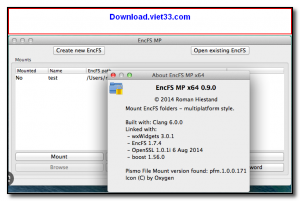
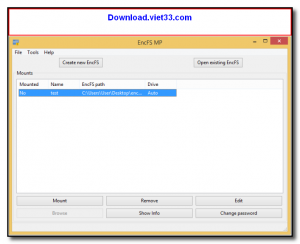
How to Install
- Click the download button to get the EncFSMP installer for Windows or macOS.
- Run the installer and follow the setup instructions. On Windows, you also need to install Dokan (a virtual filesystem driver) if prompted.
- Launch EncFSMP and click New to create a new encrypted folder, or Open to mount an existing one.
- Set a strong password and choose your encryption options, then click OK.
- The encrypted folder will mount as a virtual drive. Copy files into it normally — they are encrypted automatically on disk.
 Download Revo Uninstaller Portable 2.7.0
18 Downloads
Download Revo Uninstaller Portable 2.7.0
18 Downloads
 Download FurMark 2.10.2
19 Downloads
Download FurMark 2.10.2
19 Downloads
 Download CrystalDiskInfo 9.9.2
20 Downloads
Download CrystalDiskInfo 9.9.2
20 Downloads
 Download UniKey 4.6 RC2
43 Downloads
Download UniKey 4.6 RC2
43 Downloads
 Download PC Health Check
55940 Downloads
Download PC Health Check
55940 Downloads